 Pinvas
Install
Pinvas needs Blender 5.0.0 or newer. Blender 4.x cannot install it.
Install the add-on#
Keep the downloaded ZIP file as it is; Blender installs it directly.
- In Blender, open Edit > Preferences > Get Extensions.
- Open the menu at the top right (the small down arrow) and choose Install from Disk....
- Choose the Pinvas ZIP file. Blender installs and enables the add-on.
Blender lists two permissions for the add-on, worded "Import reference pictures from disk" and "Paste pictures and copied files onto the board".
Find the board#
- Hover over a 3D View and press N to open the sidebar.
- Open the Pinvas tab.
An empty board reads "Empty board", "Drop pictures here, or paste with Ctrl+V" and "Middle-drag to pan · Scroll to zoom". Its bar holds three buttons, Import, Fit and Undock.
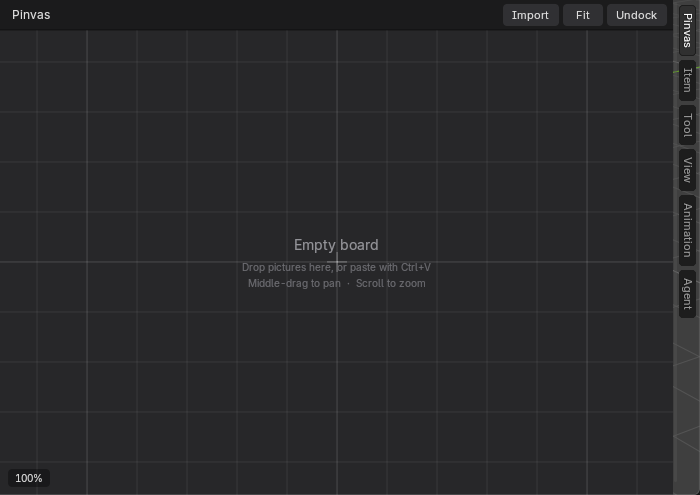
If another add-on such as a panel manager has moved or renamed the tab, look for Pinvas in the sidebar's tab column.
Update the add-on#
- Open Edit > Preferences > Add-ons, find Pinvas and choose Uninstall.
- Restart Blender.
- Install the new ZIP the same way.
Boards are saved inside your .blend files, so updating or uninstalling does not touch them.
Once the tab is there, try the quick start. If you also have Pinvas Pro, read What Pinvas Pro adds first: only one of the two can be on at a time.