 Pinvas
Undock
Undock opens the board in a window of its own, so you can drag it to a second monitor and keep your references on one screen while you model on the other.
- Click Undock on the board's bar.
- Drag the window by its bar, and resize it by its edges.
- To put it back, click Dock, or drag the window over a 3D View's sidebar and let go where it says "Release to dock in this view".
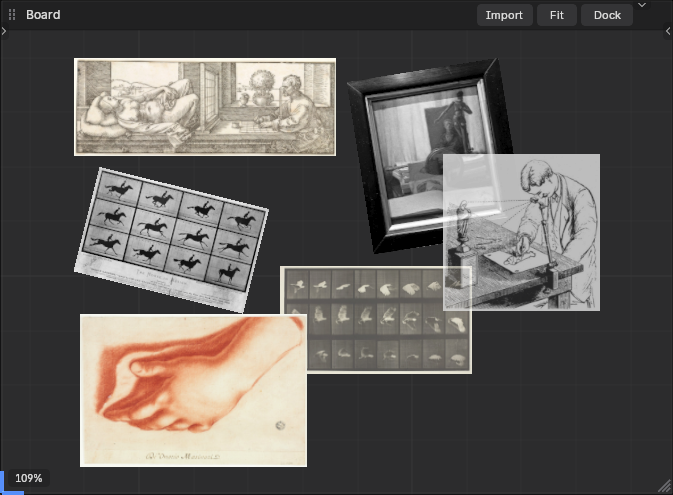
Everything on the board works the same in the window: pasting, selecting, Ctrl+P, E. Blender draws small arrows at the window's edges for regions it keeps hidden. They are Blender's, and the board does not use them.
Rest the mouse on Undock and the board shows the tip "Open the board in a window of its own. Drag it onto a 3D View's sidebar to dock it again". On Windows the board gets a real window. On other systems the button reads Float instead and the board floats over the viewport, with the same bar.
Press Ctrl+S in the board's window and it docks first, so the saved file never holds that window, then saves from the main one.
Next: Troubleshooting.