 Pinvas
Quick start
This takes about three minutes and ends with a board you have arranged by hand. You need a few picture files, or a picture you can copy.
Put pictures on the board#
- Open the Pinvas tab in the 3D View sidebar.
- Click Import on the board's bar.
- Select some picture files in Blender's file window and confirm.
The pictures arrive in a row in the middle of the board, sized to fit, and stay selected.
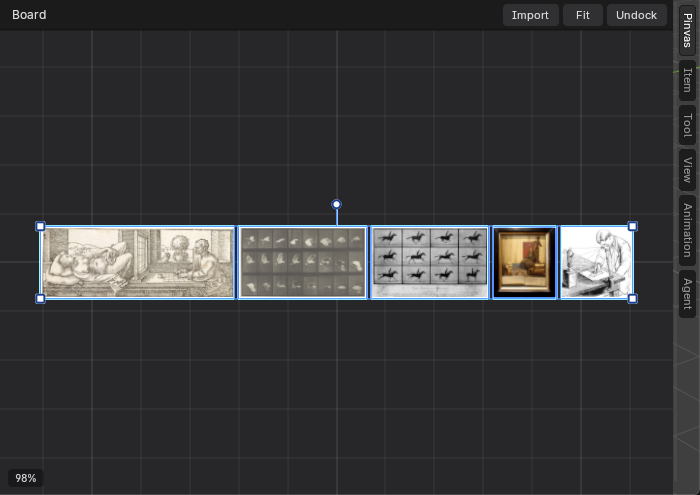
There are two more ways in. Press Ctrl+V with the mouse over the board to paste a screenshot, a copied picture, or picture files you copied in your file manager. Or drop picture files from your file manager onto the board: Blender asks which importer you mean, and you choose Add to Pinvas Board. A pasted or dropped picture lands where the mouse is.
Select, move, scale and turn#
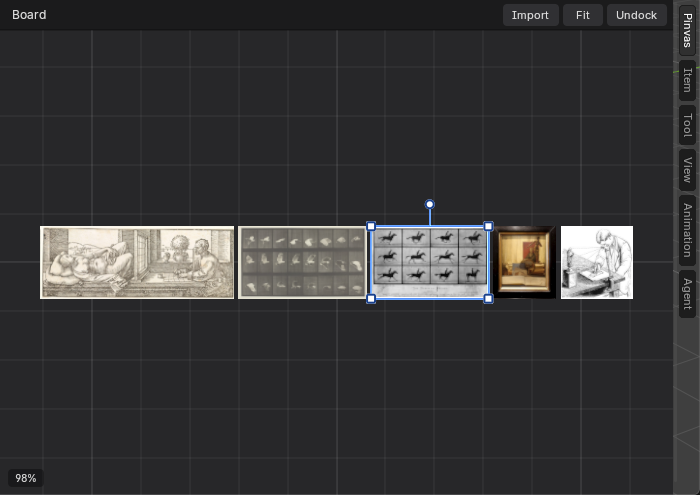
- Click a picture to select it. Square handles appear at its corners and a round one above it.
- Drag the picture to move it.
- Drag a white square at a corner to scale it. The picture keeps its proportions.
- Drag the round handle above it to turn it. Hold Ctrl while turning to turn in steps of 15 degrees.
To select more than one picture, Shift+click adds a picture or takes it out again. A drag across empty board draws a box that selects every picture it touches. A selects all and Alt+A selects none.
G, S and R work as they do in Blender: press the key over the board, move the mouse, then click or press Enter to finish, or Esc to cancel. While one runs, the foot of the board lists what the keys do, for example "X / Y: axis", "Ctrl: snap" and "Shift: precise".
Take pictures off, and see them all#
- Select a picture and press X or Delete, or right-click and choose Remove from Board. It is one undo step, so Ctrl+Z brings it back.
- Press Home, or click Fit, to show every picture on the board.
Keys over the board#
Keys only act while the mouse is over the board. Everywhere else Blender behaves as usual.
| Key | What it does |
|---|---|
| Ctrl+V | Paste a picture onto the board. |
| Shift+A | Open a small menu with Import Pictures... and Paste. |
| A and Alt+A | Select every picture, or none. |
| G, S, R | Move, scale or turn the selection, as in Blender. |
| X or Delete | Take the selected pictures off the board. |
| Ctrl+P | Tidy the board. |
| E | Pick a colour from a picture. |
| Home | Show every picture. |
| . | Show only the selected pictures. |
| 1 | Back to 100%. |
| Scroll wheel | Zoom in and out. |
| Middle-drag | Pan. |
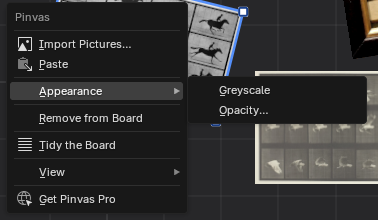
Right-click anywhere on the board for the menu: Import Pictures..., Paste, Appearance, Remove from Board, Tidy the Board and View, which holds Select All, Select None, Fit All and Fit Selected.
Next: the four extras, starting with tidying the board.