 Pinvas
Greyscale and see-through
Both live in the right-click menu, under Appearance, and act on the selected pictures.
Greyscale#
- Select one or more pictures.
- Right-click, open Appearance and choose Greyscale.
With Greyscale on, the pictures show in greys, so you can judge their light and dark without colour. Choose Greyscale again to bring the colour back. If the selection mixes grey and colour pictures, the first choice turns them all grey. The picture file is not changed, and the eyedropper reads the grey you see.
See-through#
- Select a picture.
- Right-click, open Appearance and choose Opacity....
- In the small Opacity window, set a value from 0 to 1 (it starts at 1.00, fully solid) and click OK.
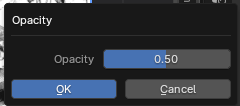
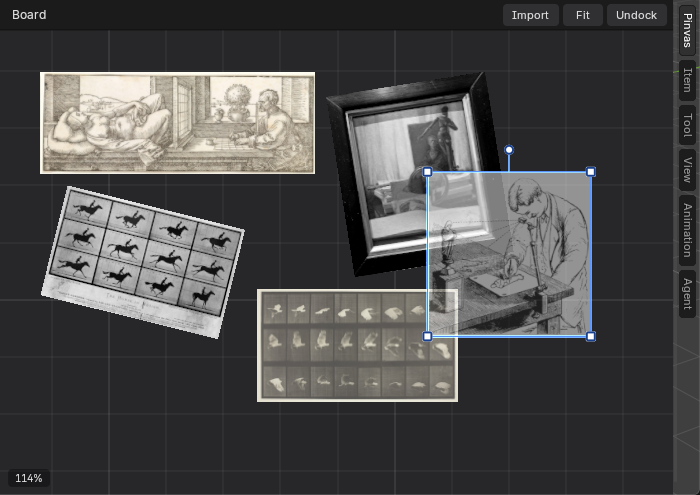
The picture lets whatever lies under it show through, which is how you hold a sketch over a photograph to compare them. If you select several pictures, the window opens at the first one's value and sets the same value on all of them.
Next: pick a colour.