 Pinvas
Judge a picture
These tools change what the board shows. They never change the picture file.
Values#
- Greyscale shows the picture in greys, to judge its values. Choose it again to bring the colour back.
- Opacity... makes the selected pictures see-through.
- Values... has three settings: brightness, contrast and posterize (the number of value levels, to see a picture's big shapes).
- Proportion Grid draws thirds or quarters over a picture.
All four are under Appearance in the right-click menu.
Crop#
Ctrl+drag a corner handle to cut a picture down; the opposite edges stay. Uncrop shows the whole picture again, in the same place.
Pick a colour#
- Press E with the mouse over the board.
- Click a picture.
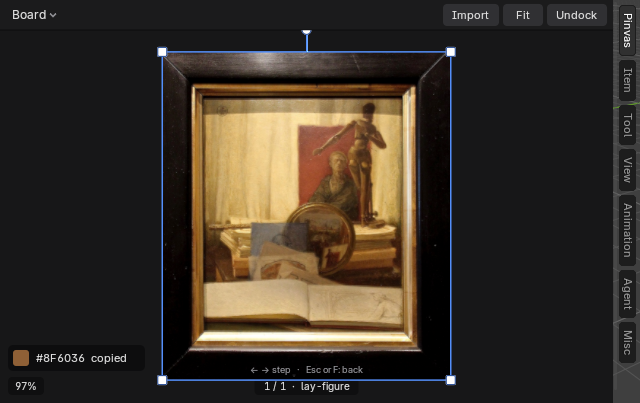
The colour under the mouse is read from the picture's own pixels, not from the screen. Pinvas copies it as #RRGGBB and shows a swatch with the word "copied" for a few seconds. Esc or a right-click cancels the pick.
The strip stays up while the mouse is on it. Click a colour in it to copy its #RRGGBB again and make it the picked colour.
Use a colour#
- Right-click and choose Make Palette to turn the selected picture's main colours into a Blender palette, set for Texture Paint and Grease Pencil.
- After a pick, right-click, open Picked Colour and choose To Brush to set the paint brush colour, or To Material to set the active object's material base colour.
See Use the board with the scene for the messages these commands give when something is missing.