 Pinvas
Stitch videos
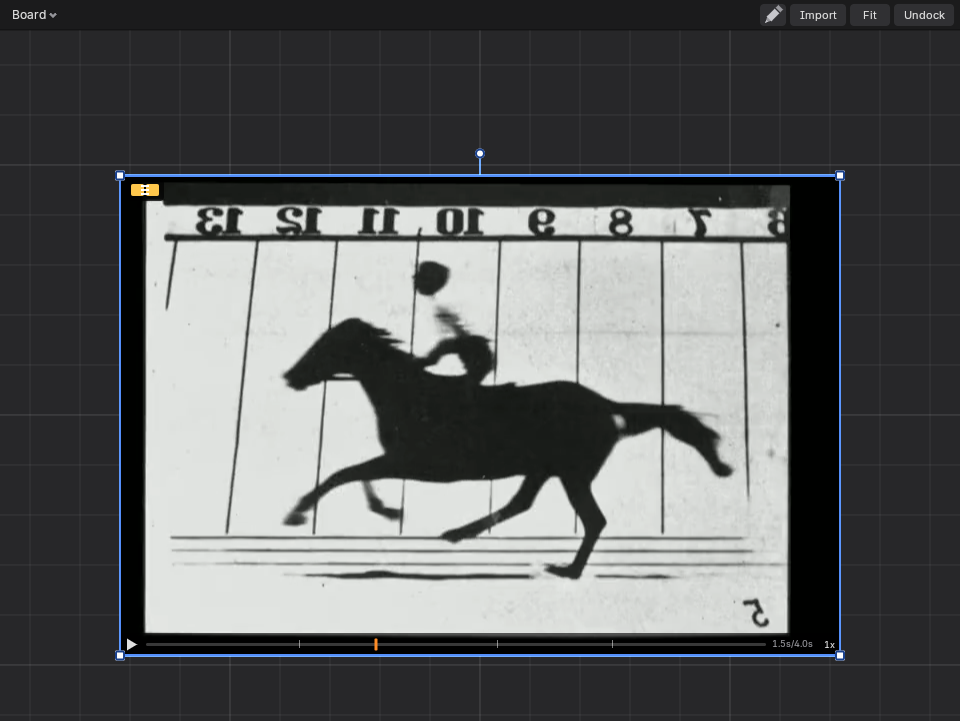
A stitch plays several videos one after another as one video. No file is cut or written: each clip has a start and an end marker, and only the part between them plays.
Make a stitch#
- Select two or more videos.
- Right-click, open Video and choose Stitch.
The videos go inside the stitch in reading order, with the last one wired to Output. The board shows the stitch as one video with a small mark on it and its length in seconds. It plays, scrubs, loops and changes speed like any video. Follow Timeline, a loop range, crop and Send to Scene are not available on a stitch.
Draw on a stitch#
Select the stitch, switch Draw on and draw as on any video. A drawing belongs to the frame of the clip you drew on. It shows while that clip plays, from that frame until the next drawing on the layer, and not in the other clips. The drawing panel's Frame, Add and Clear work on the clip showing, and its frame chips list that clip's drawn frames.
Because a drawing belongs to its clip, moving a node, reordering the chain or using the clip twice keeps it with the clip. A drawing outside a clip's trim waits there until the trim is widened. Taking a clip out of the stitch deletes its drawings (Ctrl+Z brings them back). Drawings already on a video, with their layers, move onto the stitch when it joins, and Unstitch gives them back to their videos. Analyse works on a video alone, not on a stitch.
Add videos to a stitch#
Drag the videos you want onto a stitch on the board and let go with Shift held. Each joins the stitch after its last clip, wired on to Output, and leaves the board. Drawings made on it move onto the stitch and show while that clip plays. Several selected videos join in reading order. Without Shift they are only moved; a still picture is never taken in. It is one undo step.
To add a video from a file instead, open the stitch and use Add Videos... (below).
The stitch view#
Double-click a stitch, or select it and press Tab (or right-click > Video > Open Stitch), and the board gives way to the stitch as nodes. Tab or Esc goes back.
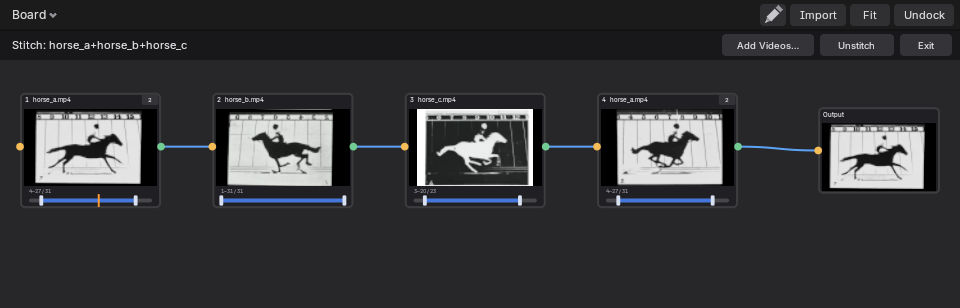
- Each clip is a node with its picture, its name and its own timeline. Drag the start or end marker to set what plays.
- Drag a wire from a node's way out (the green circle on its right) to another node's way in (the amber circle on its left). A node has one way in and one way out, and a wire that would make a loop is refused.
- Drop a node that has no wires onto a wire and it joins the chain there. The wire lights up as the node passes over it, and on letting go the node sits between the two it joined. Onto the wire into Output, it goes on the end and Output plays it.
- Drag on empty space to draw a box: the nodes it touches are selected (hold Shift to add to what is selected, Esc to put the old selection back).
- Output ends the chain the board plays. Several chains can exist; the one wired to Output is the one that plays.
- Shift+D makes another node on the same clip. The copies share one trim, so moving a marker on one moves it on all. A small count on the node says how many share it; click the count to give that node a trim of its own.
- G moves the selected nodes, X or Delete removes them, A selects all, Alt+A selects none, Space plays and Home fits everything. Middle-drag pans and the wheel zooms.
- Double-click the stitch's name to rename it.
- Add Videos... in the strip along the top, or Ctrl+V or a drop, adds videos as new, unconnected nodes.
- Unstitch brings each video back to the board, on its trim.
Every action in the view is one undo step. A clip whose file is missing is skipped. A stitch is saved with the .blend, and is kept by Duplicate, Duplicate Board, Export Board and Import Board.
Send an edit from the Video Editor#

In Blender's Video Editor, Send to Pinvas on the editor's header renders the scene's frame range to an MP4 and adds it to the board, to the right of what is there. The movie is written to a pinvas_sends folder beside the .blend (a temporary folder when the file is unsaved), numbered, and the scene's output settings go back as they were. Blender stays usable while it renders, and the video joins the board when the render ends.
If the render cannot start, the status bar says "Could not start the render" and why.