 Pinvas
Notes, frames and drawing
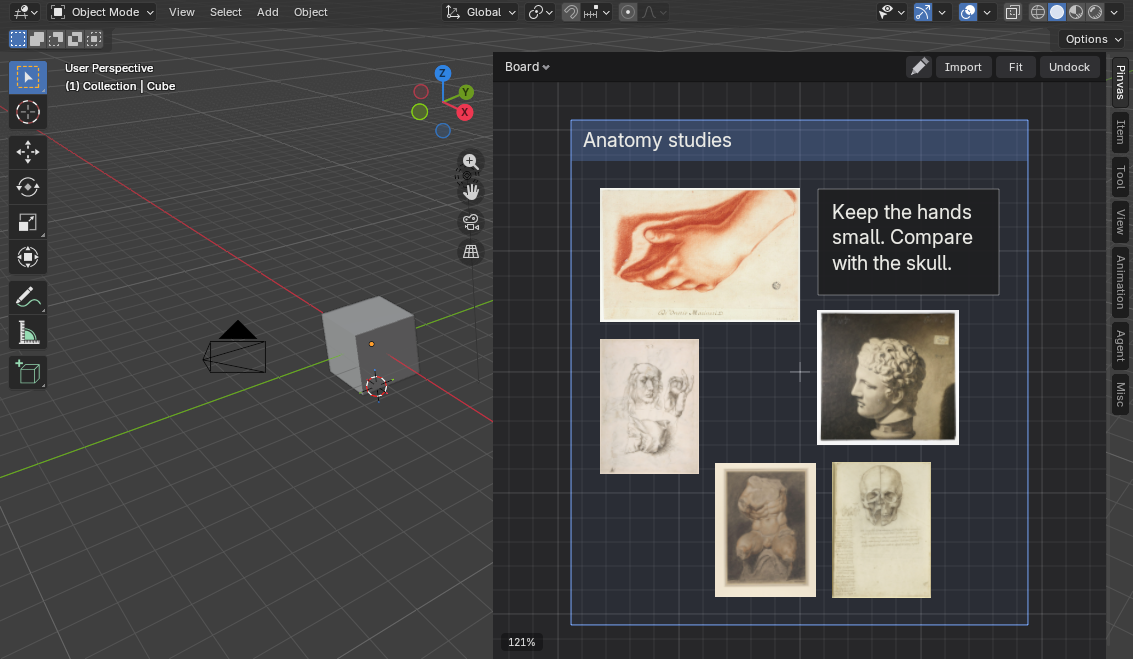
Notes#
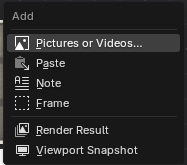
Press Shift+A over the board and choose Note, or right-click, open Add and choose Note. The note appears where the mouse is, ready to type.
- Enter starts a new line.
- Ctrl+V pastes text.
- Esc, Ctrl+Enter or a click elsewhere ends the note.
- Double-click a note to change it.
A note fits what you type: it widens with its longest line, and a line longer than a note's usual width wraps onto the next. Labels typed with the Text tool are notes too, so a one-word label is a small box.
While you type, every key goes to the note, so nothing reaches the viewport. A note left empty goes away.
Frames#
Add > Frame draws a titled frame round the selection, or an empty frame when nothing is selected, and lets you type its title. Double-click the title to rename it.
A frame knows what it holds, as a frame does in Blender's node editor, and fits round it.
- Pick a frame by its title strip or its edge. Inside it the board still box-selects.
- Dragging the frame moves everything it holds, frames inside it included. Its handles resize it.
- Let a picture go with the mouse over a frame and it joins that frame. A picture that is not in a frame stays out when a frame grows over it, and a picture you import or paste over a frame does not join it.
- Move, scale or turn a picture in a frame and the frame fits round it as you drag. Arrange and Actual Size refit it too.
- Drag a picture out of its frame and it stays in the frame, which grows to hold it. Take it out for good with Alt+P.
- Optimal with a frame selected packs its contents inside it. See Arrange the board.
Join and remove#
- Shift+P, or Join in New Frame on the right-click menu, makes a new frame round the selection and lets you type its title. It works inside another frame too: the new frame sits in that frame. With nothing selected it does nothing.
- Alt+P, or Remove from Frame on the right-click menu, takes the selected pictures out of their frame. They stay where they are and the frame shrinks. The menu item shows only when a selected picture is in a frame.
- Shrink, a tick box on the right-click menu when a frame is selected, keeps the frame tight round what it holds. It is on for a new frame. Resizing a frame by hand turns it off, and the frame then keeps that size unless what it holds needs more.
Removing a frame leaves what it held on the board, in the outer frame if it had one. Duplicate a frame together with what it holds and the copy is a frame holding the copies. Export Board, Import Board and a board copied with Duplicate keep who holds what. A frame on a board from an older version keeps its size and takes in what lay inside it the first time you click on the board.
Draw on the board#
Press the pencil Draw button in the board's bar. A tool strip appears along the top of the board and a style column down its left edge. Draw mode starts off. It opens on the Pen the first time, and after that on the drawing tool you used last, which is kept with the scene. Esc goes back to Select.
The tool strip#
| Tool | Key | What it does |
|---|---|---|
| Select | V or 1 | Pick, move, resize and box-select, as ever. Drawings can be picked and moved too. |
| Pen | 2 | Draws freehand. When you let go the line is thinned and lightly smoothed. |
| Line | 3 | Drags a straight line. |
| Arrow | 4 | Drags a line with a head. |
| Rectangle | 5 | Drags a box. |
| Ellipse | 6 | Drags an ellipse. |
| Polygon | 7 | Click corners. Click the first corner to close the shape, or press Enter or right-click to end it open. A polygon that crosses itself is outlined and never filled. |
| Text | T | Click the board and type a note. It is the note you already have. |
| Eraser | 8 | Rubs out parts of drawings. Rubbing out part of a closed shape leaves a plain line. |
| Highlighter | 9 | Paints a wide, see-through stroke over what matters. |
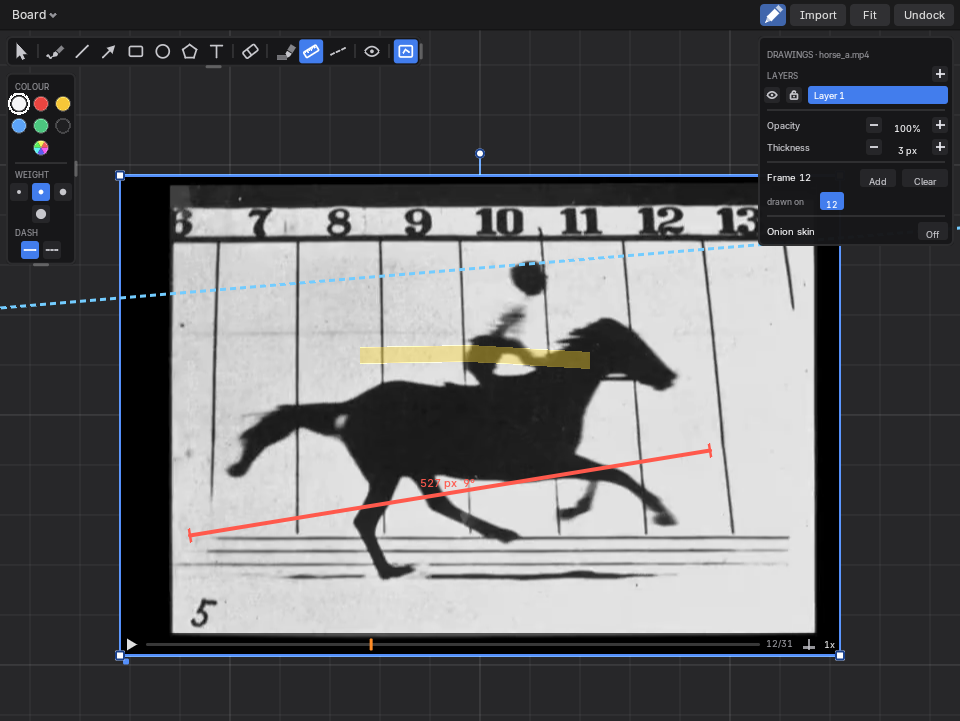
| Ruler | 0 | Drag to measure. Its length, in board units (one to a pixel of a picture at 100%), and its angle show on it. |
| Guide | - | Drags a long dashed line for a sight line or a horizon. |
The number keys work only while Draw mode is on. Shift keeps a line to 15° steps and makes a rectangle square or an ellipse a circle. Alt draws from the middle. Esc or a right-click drops a drawing in progress. The eye at the end of the strip, Show drawings, hides every drawing so you can see the pictures clean; they stay on the board. Draw inside, next to it, is explained below.
The style column#
- COLOUR: six colour chips, with the colour in use first, then recent ones and the eyedropper's pick, and a last swatch that opens Blender's colour picker for any colour. Press E in Draw mode and the colour you pick from a picture becomes the drawing colour.
- WEIGHT: 1, 2, 4 or 8 pixels.
- FILL: none, light or solid. It shows for closed shapes only.
- DASH: solid or dashed.
- ENDS: what each end of a line or arrow has: nothing, an open head, a filled head, or a round dot. Click a tile to go to the next. A dot sits right on the spot the line ends at, so use it to point at one exact place. It shows for lines and arrows only.
With drawings selected, the column restyles them all in one undo step. With nothing selected it sets the style for the next drawing. Locked drawings are skipped, and a row that does not apply is not shown. On a board narrower than about 340 pixels the column is one swatch: click it to open the column.
Change what you drew#
Switch to Select and click a drawing. A line or arrow has a round handle at each end: drag one and the other end stays put (Shift keeps 15° steps, Esc puts it back). A rectangle or ellipse resizes freely from any corner or side. Drawings are board items, so they also move, scale, turn, flip, duplicate, lock, hide and undo like pictures. A filled shape is picked from inside; an unfilled one along its line, so the pictures under it stay reachable.
Size the bars#
The strip and the column each have a faint grip on their right edge and lower edge, as Blender's own toolbar has. Drag the right edge to change the width: the icons wrap into rows, and wider still, show their names. Drag the lower edge to make the icons bigger, with their spacing. Esc puts a drag back and a double-click on a grip restores the normal size. The sizes are kept in the add-on's preferences: Tool Strip Icon Size, Tool Strip Width, Style Column Icon Size and Style Column Width.
Drawings that belong to a picture#
Draw inside, at the end of the strip, is on by default. With it on a drawing can only be started on a picture or a video. It belongs to the one it started on, stays inside that picture's edge, and moves, scales and turns with it. Starting on the bare board shows "Draw inside is on: start on a picture or a video (switch it off in the strip to draw on the bare board)". Switch Draw inside off to draw anywhere.
To make any items follow another, select them, then select the one that leads last, right-click, open Transform and choose Parent to Last Selected. Release from Parent lets them go; they stay where they are. Hiding or removing a parent takes its drawings with it. Flip, Straighten, lock and crop on a parent do not reach its drawings.
Drawings on a video#
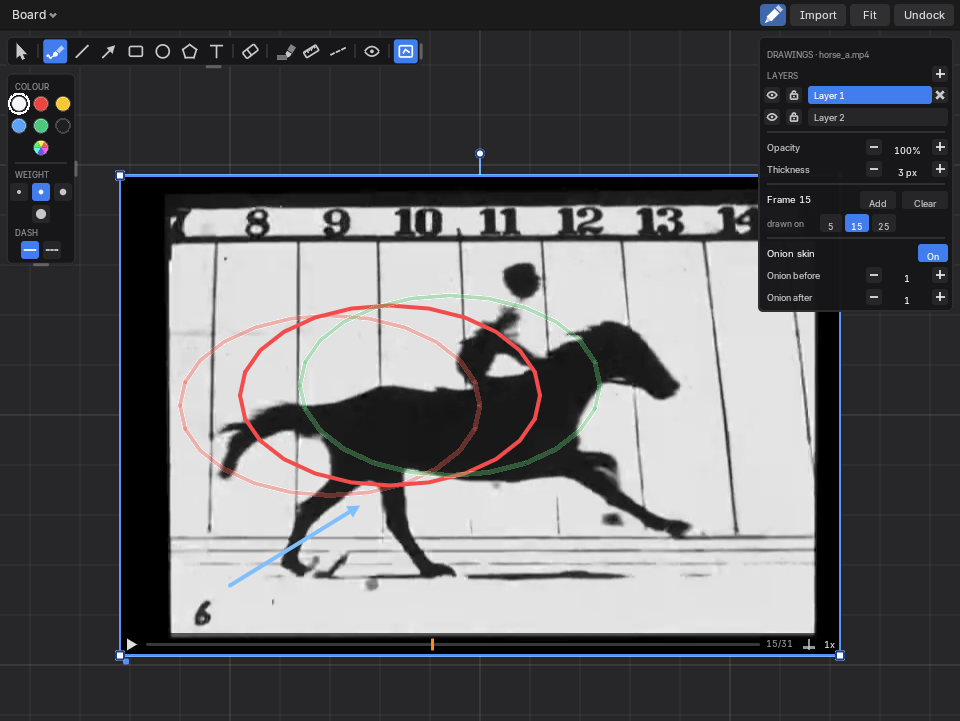
A drawing made on a video lives on the frame on show and holds until the next drawing, as Blender's Annotations do. Drawing on a playing video pauses it. Add a blank frame to end a held drawing.
With a picture or video selected in Draw mode, the drawing panel runs down the board's right edge. A board narrower than about 420 pixels has no room for it.
- Layers: an eye shows or hides a layer and a lock stops it being changed or drawn on. The name picks the layer the next drawing goes on. Add and remove buttons make and delete layers; the last layer stays.
- Opacity and Thickness of the picked layer, in steps.
- Frame, for a video, is the frame on show. Add makes a blank frame and Clear empties what the picked layer holds at this frame. A chip marks each frame that has a drawing; click one to go to it.
- Onion skin, On or Off, with Onion before and Onion after: the drawings before and after the one on show as faint ghosts, up to five each way.
Analyse a video#
Right-click a video, open Video and choose Analyse. The video opens alone with a timeline of its drawings. 
Click the timeline to go to a frame. Drag a drawing's tick to another frame to move it, hold Alt as you let go to copy it, and press X to remove it. Esc, F or a double-click goes back to the board.
Send drawings to the scene#
Nothing you draw enters your scene until you send it. See Use the board with the scene.
Blender's Annotate tools#
The Annotate tools in the 3D View's toolbar still draw on the board when one of them is active, and so does D+drag (D+right-drag erases). Their lines take the active annotation layer's colour and thickness, and they are board items too.
- Annotate: a freehand line.
- Annotate Line: a straight line.
- Annotate Polygon: a line through each click. Enter, Space, a double-click or a right-click ends it.
- Annotate Eraser: erases where its ring passes. The ring's size comes from Blender's preferences.
Lock and hide#
- Lock / Unlock: a locked item can be selected but not moved, scaled, turned, cropped, erased or arranged. It shows a small lock.
- Hide (H) takes the selection out of view. Show Hidden (Alt+H) brings everything back.