 Pinvas
Arrange the board
Right-click and open Arrange to work on the selected pictures. Notes and drawings count as pictures here.
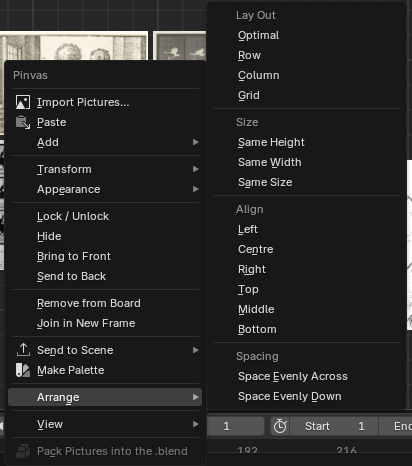
| Group | Command | What it does |
|---|---|---|
| Lay Out | Optimal (Ctrl+P) | Packs the pictures into one tight block shaped like the board, so they show as big as possible once the view fits them. With nothing selected it packs the whole board, and the view then shows it all. |
| Lay Out | Row, Column, Grid | Side by side with the tops level, one under another with the left edges level, or in rows and columns. |
| Size | Same Height, Same Width, Same Size | Gives each picture the selection's average height, width or area. |
| Align | Left, Centre, Right, Top, Middle, Bottom | Lines up their edges or middles. |
| Spacing | Space Evenly Across, Space Evenly Down | Equal gaps between three or more pictures; the outer two stay. |
Change the gap and the order#
After Optimal, Row, Column or Grid, Blender's Adjust Last Operation panel (bottom left of the 3D View) changes the gap and the order. The order is as placed (reading order), by name, or as added.
Frames#
Optimal with a frame selected packs the frame's contents inside it and fits the frame round them. See Notes, frames and drawing.
Fit the view#
Home or the Fit button on the board's bar shows every picture. Fit Selected, under View in the right-click menu, shows only the selection, and 1 (or a click on the zoom label at the board's bottom left) returns to 100%.