 Pinvas
Boards and files
The title on the board's bar is the board's name. Click it for the Boards menu.
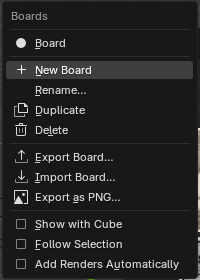
| Item | What it does |
|---|---|
| The board names | Show that board. |
| New Board, Rename..., Duplicate, Delete | As named. The last board is only emptied, never removed. |
| Export Board... | Saves the board as a .pinvas file: the board and the bytes of every still picture inside it. Videos travel by their path. |
| Import Board... | Brings a .pinvas file in as a new board. A picture whose file is still where it was is linked again; otherwise it comes in packed. |
| Export as PNG... | The whole board as one picture, at 1x or 2x, at most 8192 pixels. |
| Show with | Links the board to the selected object. |
| Follow Selection | Selecting an object a board is shown with brings that board up. |
| Add Renders Automatically | Every finished render lands on the board. |
On a floating or undocked board, drag the title to move the board and click it for the menu.
Where pictures are kept#
Blender saves the board with the .blend file, in the scene. Imported pictures stay linked to their files on disk, with paths relative to the .blend once you have saved it, so the .blend stays small. Pasted pictures have no file of their own, so Pinvas packs them into the .blend.
Before you move or send a file, right-click and choose Pack Pictures into the .blend. It packs every linked picture on the board and reports how many it packed.
A picture whose file cannot be found shows as a red Missing box with its name, so you always see what is gone. Videos always stay linked, so a moved .blend needs its video files to move with it.
Messages#
Exporting and importing boards report what happened: "Board saved to ..." with a picture count, Board "...": ... item... after an import, and "Board saved as ..." with the size after a PNG export. The failures are listed on Troubleshooting.