 Pinvas
Videos
Videos come in the same way as pictures: Import, a drop, or pasted files. They stay linked to their files on disk and play without sound. Crop, flip, greyscale, values and the eyedropper all work on the frame on show.
The strip#
Hover over a video, or select it, and a strip appears along its foot.
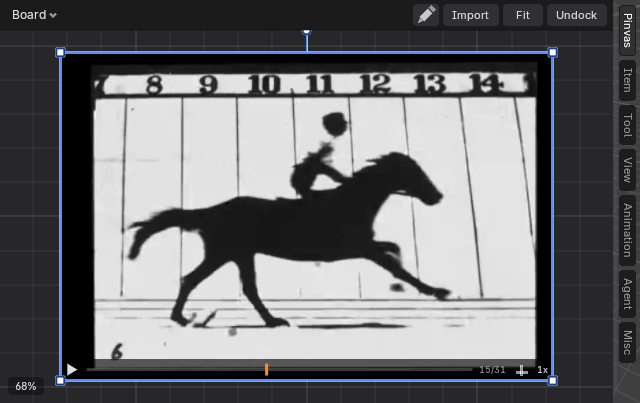
From left to right: the play button, the scrub bar with the loop range lit, the frame count (here 15 of 31), the Follow Timeline button and the speed. Rest the mouse on any part of the strip and a tip says what it does for the clip as it is now.
Play and scrub#
- Play / pause: the button, or Space with the mouse over the board. With no video under the mouse, Space plays the selected videos; with none selected, it is Blender's own playback.
- The clip plays at its own frame rate times its speed. Click the speed to step through 0.25x, 0.5x, 1x and 2x.
- Scrub: drag along the bar.
- Left and Right step a frame. Shift+Left and Shift+Right go to the start and the end.
Loop#
Right-click, open Video and choose Set Loop Start Here or Set Loop End Here. Clear Loop plays the whole clip. Without a loop a clip stops on its last frame.
Follow the timeline#
Follow Timeline (the small timeline button on the strip, or right-click > Video) makes the clip show the scene's frame plus an offset. Scrub Blender's timeline or play the scene and the clip follows.
Sync to This Frame sets the offset so the frame on show belongs to the scene's current frame.
Stitch, analyse and edit#
- Stitch plays several clips as one video; see Stitch videos.
- Analyse opens a clip alone with a timeline of its drawings; see Notes, frames and drawing.
- Send to Pinvas puts an edit from Blender's Video Editor on the board; see Stitch videos.
Send a video to the scene#
A video can go to the scene whole, as a movie that plays; see Use the board with the scene. Its crop stays on the board.