Driver EspressoDriver Espresso Premium
RGB & Neon
Cycle through colours, send a chase along a row of lights, or make neon flicker as it warms up. Adjust the timing to get the lighting effect you want.
Animate your scenes in seconds.
I need me an Espresso!
Here are a few things you can make with Driver Espresso.
Cycle through colours, send a chase along a row of lights, or make neon flicker as it warms up. Adjust the timing to get the lighting effect you want.
Bring the rotor up to speed gradually, then keep it spinning at your chosen RPM. Set when it starts, how long it takes to accelerate, and which direction it turns.
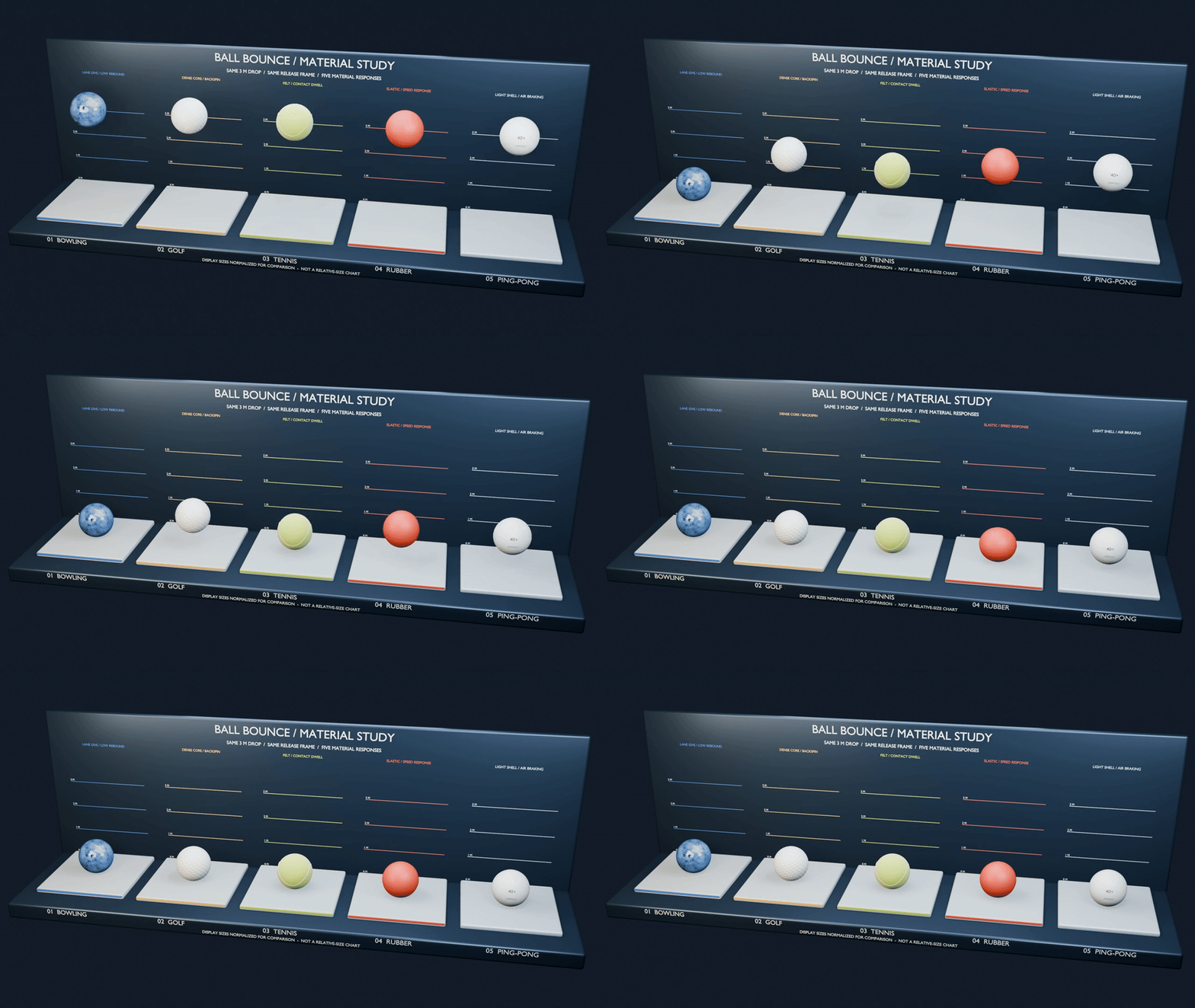
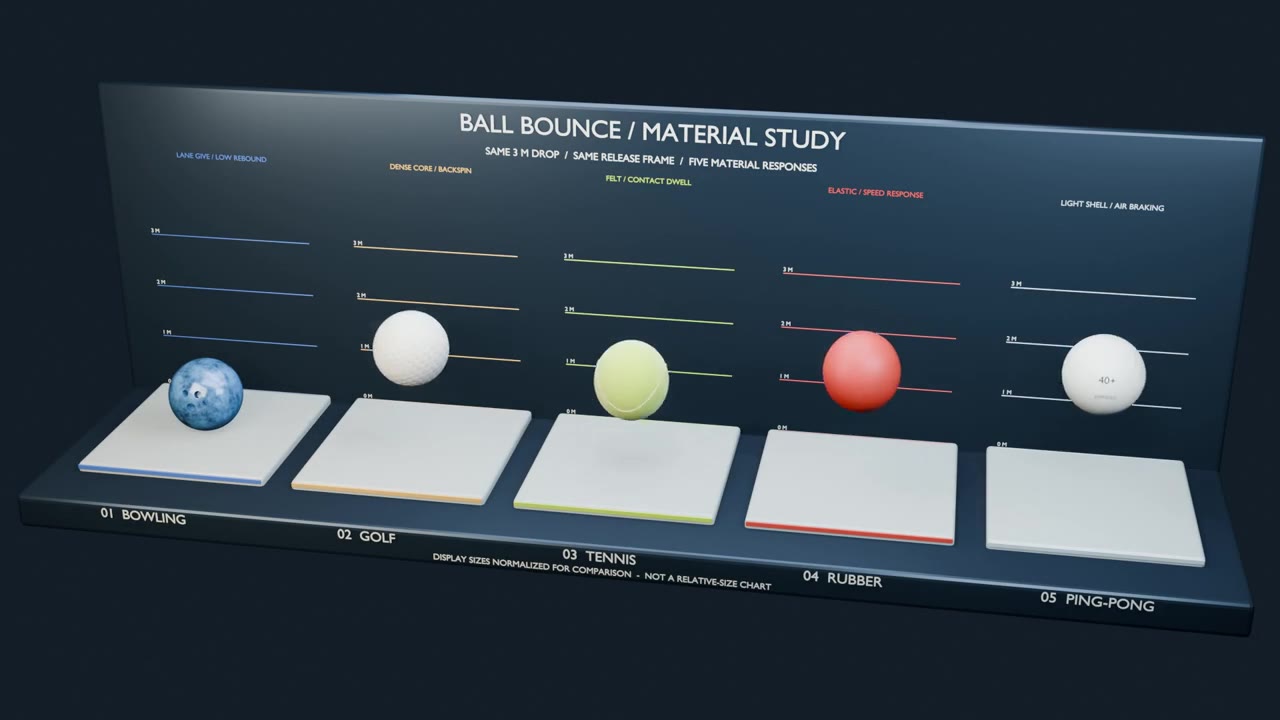
Choose from five ball types, then adjust the bounce to suit your animation. Change the release height, bounciness and timing to get anything from a heavy drop to a lively rebound.
Ball Bounce: Bowling Ball · Ball Bounce: Golf Ball · Ball Bounce: Tennis Ball · Ball Bounce: Rubber Ball · Ball Bounce: Ping-Pong Ball
Alternate red and blue lights with quick strobes or a slower wig-wag pattern. Adjust the cycle length, flash interval and on-time, then offset the pattern for each vehicle.
Create red and white flash patterns with control over burst rate, flashes per burst and brightness. Offset groups of lights to make them alternate.
Use the arrows to swipe next
The same Ball Bounce footage as a 960-pixel GIF. Open to load; close to stop. The main showcase uses sharper, smaller looping MP4s with pause controls.
Watch me apply the templates and adjust them in Blender.
Search for the movement you want, or browse the categories.
Right-click the property you want to animate. For templates that control several things together, use the Apply controls in the panel.
Open Live to adjust the effect you’ve applied. Try a setting, play the timeline, and see how it looks.
Follow along as I apply templates and adjust their settings. A few recordings use an older interface, so some buttons may look different.
See how changing the colour and timing settings affects the lights.
Change the rotor settings in Live and check the result during playback.
It changes a property over time. What that property controls is up to you.
Apply a template to a light’s Power and it changes the brightness. Apply one to Rotation and it turns an object. You can also animate shader inputs and modifier settings. You still choose the object, set its pivot and build the scene—Espresso takes care of the changing value.
| What you get | Driver Espresso Lite | Driver Espresso | Driver Espresso Premium |
|---|---|---|---|
| Templates | 20 | 135 | 230 |
| Categories | 6 | 15 | 22 |
| Graph Preview | Yes | Yes | Yes |
| Visual Preview | — | — | Yes |
| Favorites & Recent | — | Yes | Yes |
| External-input recipes | — | Yes | Yes |
| Minimum Blender version | 4.2.0 | 4.2.0 | 4.2.0 |
Try Driver Espresso Lite for the basics. Choose Driver Espresso for a far wider catalogue, or Driver Espresso Premium for the full catalogue and Visual Preview. Compare the editions →
Your native drivers can keep playing in Blender without Espresso installed. You’ll need the add-on to adjust them through its controls. If you’re moving a Ball Bounce setup, copy its helpers along with the ball. You can also bake the animation to keyframes—save a copy first so you can keep editing the original.