Applying & editing
Where an effect goes when you apply it, and how to find it again to change it.
Three ways to apply
Right-click the property you want to animate, then choose one of these:
- Apply Current Template applies the template selected in the panel, straight away.
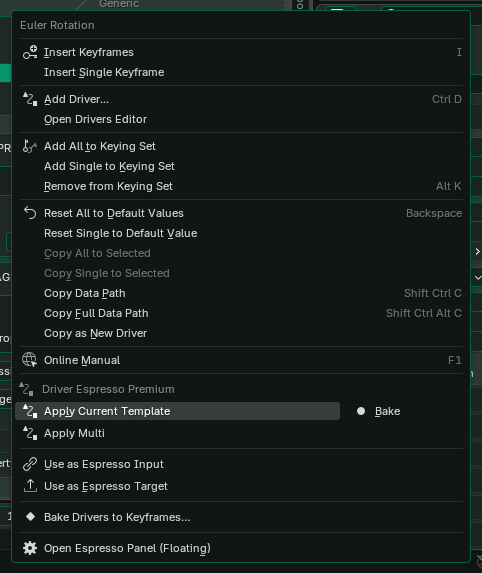
Right-click Rotation Z and choose Apply Current Template - Open Espresso Panel (Floating) opens a pop-up right where you clicked, so you can choose and set up a template without the sidebar. Press OK to apply.
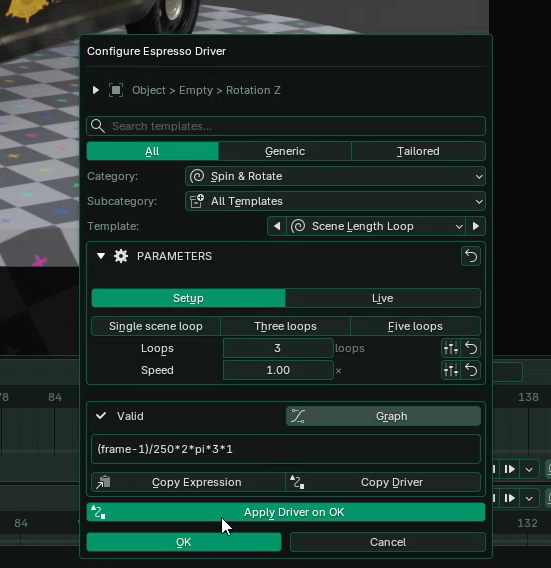
The floating Configure Espresso Driver pop-up, with Apply Driver on OK ticked - Use as Espresso Target remembers the property, and the status bar confirms it. Select the objects you want to animate, set up the template in the panel and click the Apply button in Apply & Manage. Each selected object gets its own driver on its own copy of that property. To undo the choice, right-click the property and choose Clear Espresso Target.
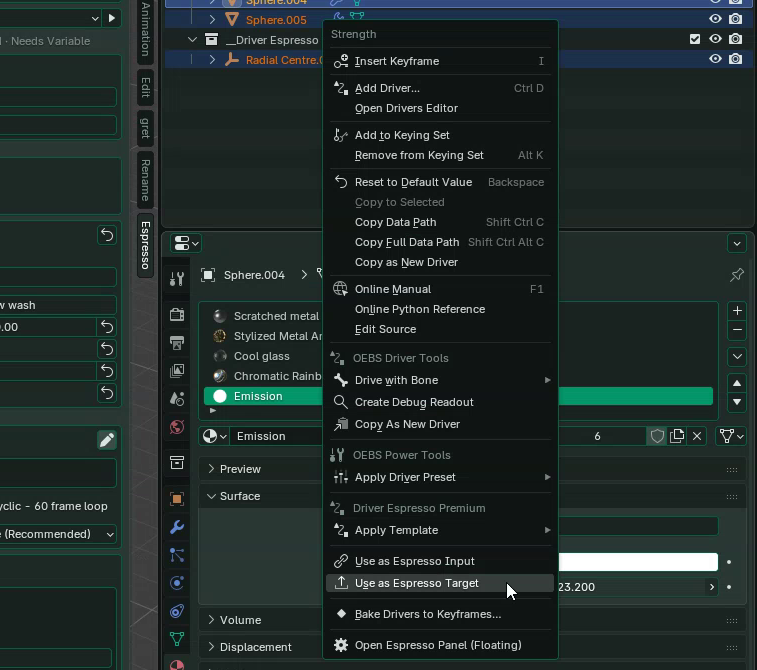
Right-click a material’s Strength: Use as Espresso Target highlighted
The right-click menu also has Apply Multi, which applies the template to every part of a property at once, such as all three of Location X, Y and Z.
Where does the effect live?
Blender stores a driver on whatever owns the property you animated. To adjust an effect in Live, select that owner.
| You animated | It’s stored on | To adjust it in Live, select |
|---|---|---|
| Location, rotation, scale or object colour | The object | The object |
| A light’s Power | The light | The light |
| A material value, such as Emission Strength | The material | An object that uses the material |
| A modifier value | The object’s modifier | The object |
| A custom property | Whatever holds the property | That object |
When the effect isn’t on the object you clicked
Take a police light’s red lens. The lens glows because its material is driven, or because the material reads the object’s colour through an Object Info → Color node. The driver isn’t on the lens mesh. To adjust it, select what’s actually driven: the material input, or the object colour the node reads.
Applying over an existing effect
If the property already has an Espresso effect, Apply & Manage warns you, and by default the new effect replaces it. To be asked every time, set Conflict Handling to Always Ask in Preferences. Espresso never replaces drivers it didn’t create. On a valuable shot, save a copy before you experiment.
If Live can’t find your effect
- Select the object, light or material that owns the effect. See the table above.
- Check that the template selected in the panel is the one you applied.
- If there’s more than one effect, pick the right one.
- Click Reload Live Parameters to refresh the panel from the applied effect. If the driver itself was deleted, apply the template again.
- For Ball Bounce, check that its hidden helper object is still in the scene.
Removing an effect
Use Clear Applied Motion or Clear Last Driver in Apply & Manage, or Blender’s own Delete Drivers in the property’s right-click menu.