Your first animation
Make an object spin, then change its speed while it plays. It takes a few seconds, and every other template works the same way.
1. Pick the template
Select the object you want to spin. It turns around its origin, so check the origin is where you want the pivot to be. In the 3D Viewport, press N and open the Espresso tab. Search for Constant Speed and select it. It’s in all three editions.
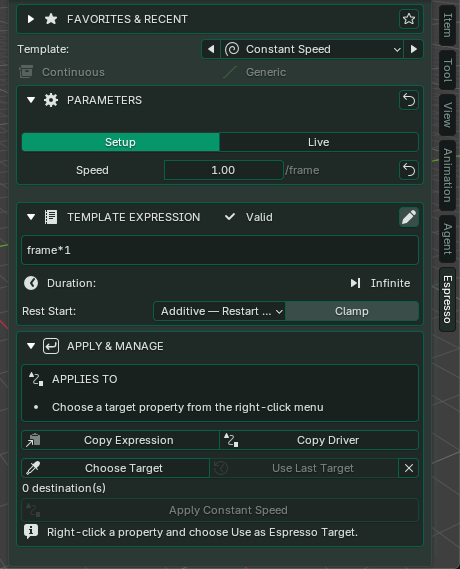
2. Apply it
Right-click Rotation Z, in the sidebar’s Item tab or in the Object properties, and choose Apply Current Template.
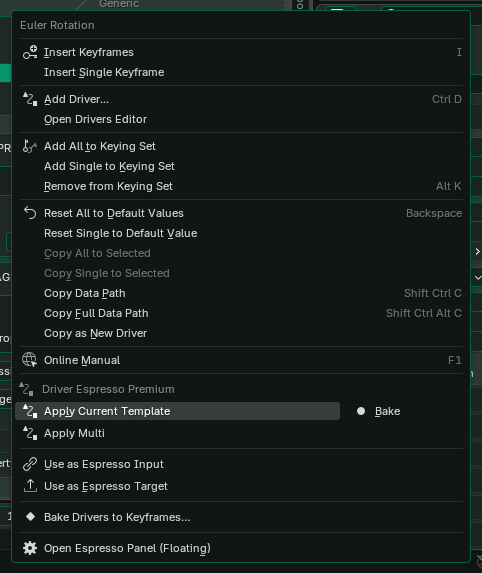
The field turns purple, which means it’s driven. Press Play and the object spins. There are no keyframes to manage.

On some properties, Espresso groups its apply options in an Apply Template submenu. Apply Current Template is inside it.
3. Tweak it while it plays
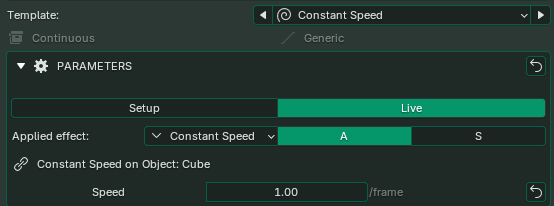
In the Parameters section, switch from Setup to Live. Live shows the effect on the selected object. Change Speed and watch the object while the timeline plays. If an Update button appears, click it to apply your change.
Where to next
- Setup prepares a template before you apply it. Live adjusts one that’s already applied.
- Want the pop-up panel, or to animate several objects at once? Applying & editing covers the other ways to apply.
- Change one setting at a time, then play a few frames to see what it did.
- For a one-shot motion, such as a drawer closing, go back to its start frame before you compare versions.