Installation
Install one edition, open the Espresso tab, and you’re ready to animate.
Install the add-on
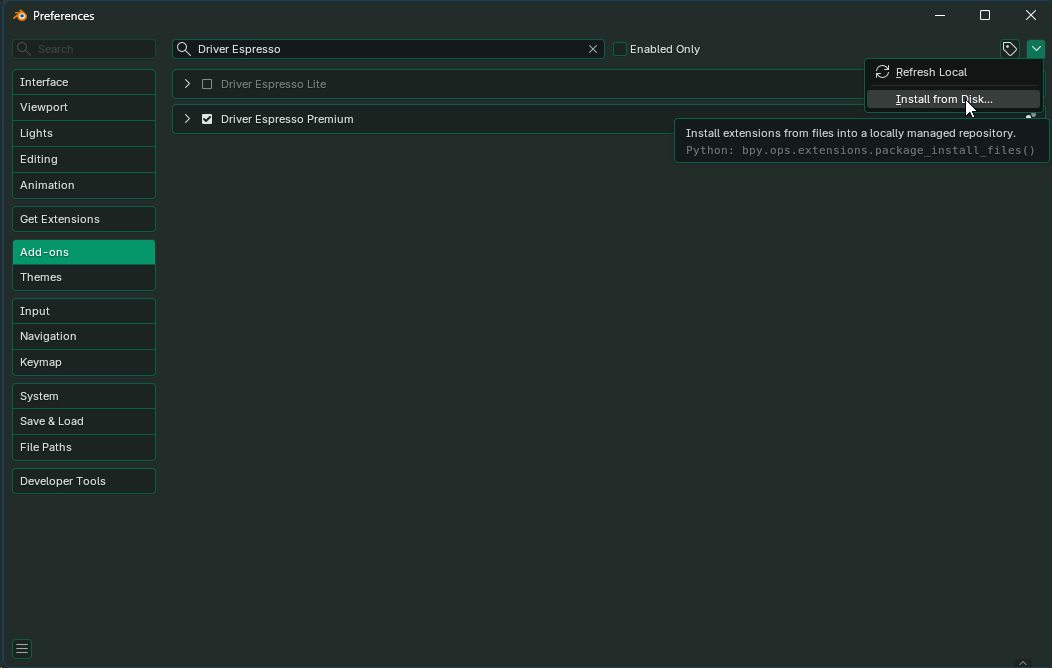
Driver Espresso comes in three editions: Driver Espresso Lite (free), Driver Espresso and Driver Espresso Premium. Install only one of them. They share the same menus and buttons, so they can’t be enabled at the same time. Premium already includes everything in Driver Espresso.
- Save your Blender file.
- Open Edit → Preferences → Add-ons. If an older Espresso edition is enabled, untick it.
- Open the drop-down menu at the top right of the Add-ons page, choose Install from Disk… and select the ZIP you downloaded. Don’t unzip it first.
- Tick the edition you installed to enable it.
- In the 3D Viewport, press N to open the sidebar and click the Espresso tab.
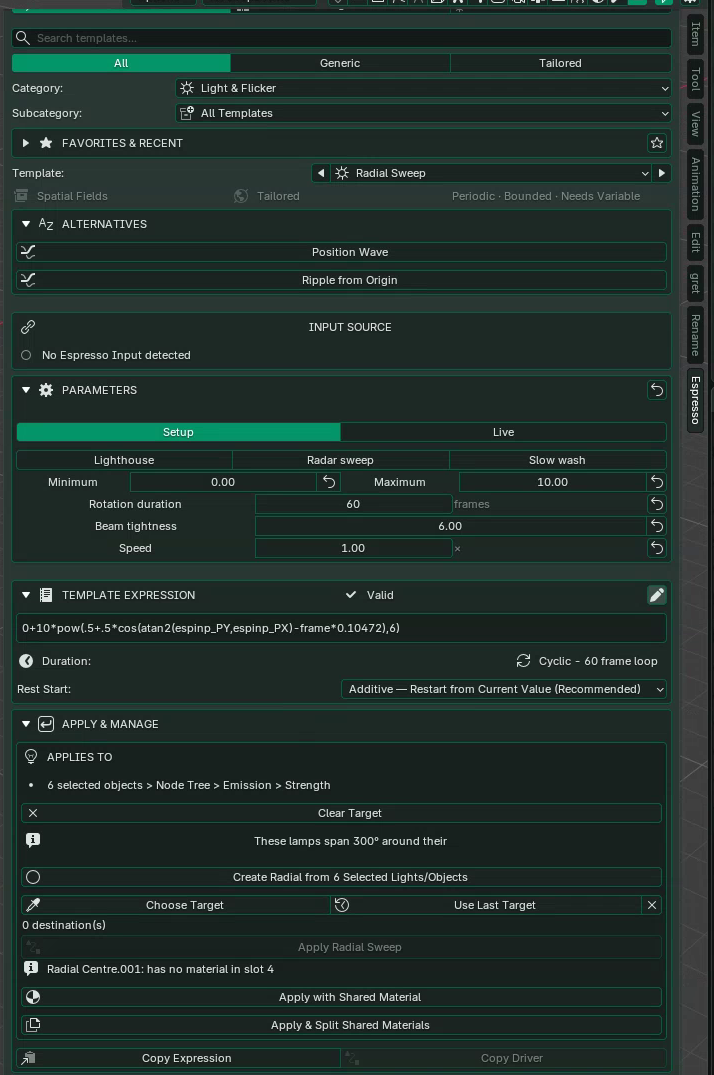
New to Driver Espresso? Try your first animation on a spare object before you use it in an important shot.
Updating to a new version
Untick the installed version in Preferences → Add-ons, then install the new ZIP the same way and enable it. Your scenes keep their animations.
Moving from Lite to Driver Espresso or Premium
Save a backup of your file, untick Lite, then install and enable the new edition. Every template in Lite is also in Driver Espresso and Premium, so your existing animations keep playing and you can keep adjusting them in Live.
Don’t delete any drivers or helper objects that Espresso added to your scene. They are what makes the animation play.
Removing the add-on
Untick the add-on and choose Uninstall from its menu in Preferences. Animations you’ve already applied are ordinary Blender drivers, so they keep playing without the add-on. You only need Espresso installed to adjust them with its controls. Ball Bounce also needs its hidden helper object, so keep that in the file.
If the Espresso tab is missing
- Check the add-on is ticked in Preferences → Add-ons.
- Make sure only one edition is enabled.
- Look in the 3D Viewport sidebar (N), not another editor’s.
If Blender shows a Python error, copy the error text (on Windows: Window → Toggle System Console) and send it to us with your Blender version. See Getting help.